In today’s article, I’ll show how you can pre load your sprites! This will be very important for the next step of our game development journey! 😄
What is Preload?
Preload will tell Godot to load the resources (sprites, audios, etc) before the scene is loaded, so when the loading finishes, everything will be already there for us to use.
So for our example here, we’ll create a preload for our human characters! Note that I said it in plural, so we can have a lot of fun creating our world!
Sprite pack
Btw, I’m using the awesome sprites in the “Mana Seed” pack! There’s an awesome free version for you to try.
The code!
Composite Sprite Source
Now, onto the fun part! The code! In short, this is a new class that we’ll name CompositeSpritesSource.gd, will hold dictionaries for our sprites.
extends Node

var body_spriteSheets = {
    "Body": preload("res://Sprites/Human/Composite/Body/Base_Body.png")
};

var faces_spriteSheets = {
	"Glasses": preload("res://Sprites/Human/Composite/Faces/Glasses.png"),
	"Shades": preload("res://Sprites/Human/Composite/Faces/Shades.png")
};
And so on, we’ll do this for all of our sprites.
Note that my sprite sheets are under a folder called Sprites!
The folder structure looks something like this:
Heads
res:///
├─ Sprites/
│ ├─ Human/
│ │ ├─ Composite/
│ │ │ ├─ Faces/
│ │ │ ├─ Hair/
│ │ │ ├─ Heads/
...And for our script, the folder structure will be:
res:///
├─ Commons/
│  ├─ Sprites/
│  │  ├─ CompositeSprites/
│  │  │  ├─ CompositeSpriteSource.gd
Composite Sprite Loader
This script will be under the same folder as the CompositeSpriteSource.gd, and we’ll name it CompositeSpriteLoader.gd
What is the purpose of this file?
This will be a singleton that holds all the information of our sprites for our characters.
But why a singleton? Better yet, WHAT IS a singleton?
Singleton is a design pattern in software development that states that “The singleton pattern restricts the initialization of a class to ensure that only one instance of the class can be created.”
You can read more of Singleton (and other design patterns here)
We’re choosing a singleton here because we don’t want to load the sources every time, as this would cost too much data in memory, we want to load it only once!
The script
Get comfortable, we’re in for a wild ride with this one.
First we need to import our CompositeSpriteSource.gd into our script, we can do this by:
@onready var _composite_sprites_source: CompositeSpritesSource = get_node("/root/CompositeSpritesSource");
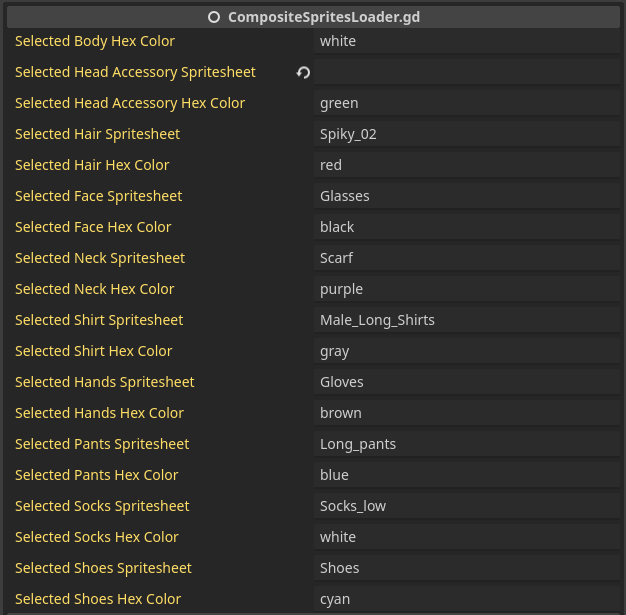
Great! Firs line of many! now, let’s export some attributes, this will be used for creating multiple characters later (maybe, even a randomize character? 👀)
Our exports are something very simple, we’ll have one for an area of the sprite, with some pre-selected value. For the sake of simplicity, I’ll shorten the code.
# More code above

@export var selected_head_accessory_spritesheet: String;
@export var selected_head_accessory_hex_color: String = "green";

@export var selected_shirt_spritesheet: String = "Male_Long_Shirts";
@export var selected_shirt_hex_color: String = "green";

#Even more awesome code below
But how we will be setting these values?
First, we need a dictionary to hold these and more values, we can achieve this by:
@onready var _dict = {
   "HeadAccessory": {
      selected_sprite_sheet": selected_head_accessory_spritesheet,
		"sprite_sheets": CompositeSpritesSource.heads_spriteSheets,
		"sprite": get_node("HeadAccessory"),
		"color": selected_head_accessory_hex_color,
   }
#... So on and so forth for all our nodes!
}
Let’s break down the above code
selected_sprite_sheet
This value will hold which file of our prite sheets to use, let’s say you have head accessories for bandanas, cowboy hats, caps etc, we need to know which sprite sheet to load, this is the path.
sprite_sheets
This are all the available sprite sheets available for our “HeadAccessory”.
sprite
Which node we’re referencing for the sprite in our characters, in this scenario, the “HeadAccessory”.
color
What color our sprite should be.
Easy enough right? 😁 We’ll need to do this for every sprite, shoes, pants, shirts etc.
_ready()
We can use the _ready(): function to set some initial values for us, pretty simple, let’s have a look
func _ready():
   # Head Accessory
   if selected_head_accessory_spritesheet != "":
		var headAcecssorySprite: Sprite2D = get_node("HeadAccessory");
      headAcecssorySprite.texture = _composite_sprites_source.heads_spriteSheets[selected_head_accessory_spritesheet];
      headAcecssorySprite.modulate = Color(selected_head_accessory_hex_color);
If there’s a pre-selected hair accessory, we’ll get that value and set to our node texture (sprite sheet) and modulate it (color it).
Some helper methods
These methods will help us later when dynamically creating a character!
## Returns a dictionary of selected sprite sheets and its colors.
func get_selected_sprites():
	var value_dict = {};

	for key in _dict.keys():
		value_dict[key] = {
			"selected_sprite_sheet": _dict[key].selected_sprite_sheet,
				"color": _dict[key].color
			};

	return value_dict;

## Changes a sprite sheet for the character.
## sprite_to_change: The name of the charatecer Sprite2D
## new_selected_value: new sprite sheet name.
func change_sprite_sheet(
	sprite_to_change: String,
	new_selected_value: String) -> void:

	_dict[sprite_to_change].selected_sprite_sheet = new_selected_value;
	var sprite = _dict[sprite_to_change].sprite;

	if new_selected_value == "":
		sprite.texture = null;
	else:
		sprite.texture = _dict[sprite_to_change].sprite_sheets[new_selected_value];

## Changes the selected sprite sheet modulate color.
## sprite_to_change: The name of the charatecer Sprite2D
## new_selected_color: The new color to modulate.
func change_selected_sprite_sheet_color(
	sprite_to_change: String,
	new_selected_color: String) -> void:
	_dict[sprite_to_change].color = new_selected_color;
	var sprite = _dict[sprite_to_change].sprite;
	sprite.modulate = Color(new_selected_color);

## Reset all character body sprites to empty.
func reset_sprites():
	for key in _dict.keys():
		change_sprite_sheet(key, "");
		change_selected_sprite_sheet_color(key, "white");

## Loads a dictionary to the character
func load_sprite_sheet(sprite_data: Dictionary) -> void:
	for key in _dict.keys():
		change_sprite_sheet(key, sprite_data[key].selected_sprite_sheet);
		change_selected_sprite_sheet_color(key, sprite_data[key].color);
The most important method here is the change_sprite_sheet() as it’ll load another sprite sheet for our character in runtime, so we can get to change equipment for example!
Preview of next article!
For the next article we’ll be creating our characters using what we learnt here today! It’s a lot of information, but it’s something that’s awesome!
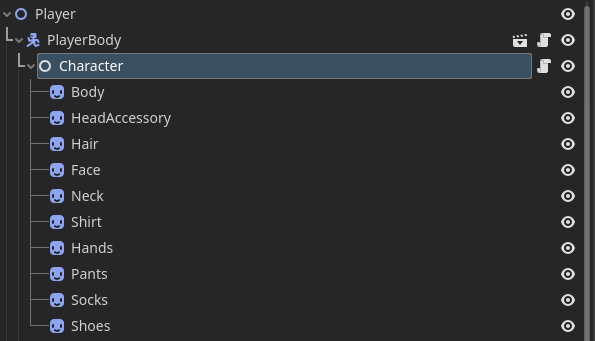
What will this look like in our editor? We’ll dive deeper in the next article but here’s a sneak peek:
Thank you!
As always, I hope you find this article helpful!
See you in the next one!



 Xuxu's Dev Chronicles
Leave a comment